Many users often ask me how to print their Canva templates after making edits. It’s an excellent question, given that most software programs allow for straightforward printing by navigating to ‘File’ and then selecting ‘Print’.
Canva, on the other hand, takes a slightly different approach by providing a variety of export options to suit your needs, including:
– JPG: Ideal for sharing online
– PDF Standard: Perfect for emailing
– PDF Print: The go-to choice for high-quality printing
– GIF: Suitable for short, soundless animations
For those with a Canva Pro subscription, you also have the option to export your designs as:
– SVG: Optimal for web design and animations
It’s worth noting that a free Canva account will adequately serve your needs, as all my digital template designs are compatible with either PDF Print or JPG formats.
Why should you opt for PDF Print when exporting your design? By choosing this format, you ensure that your design is printed with the highest quality (300 dpi resolution), which is essential for professional-looking results.
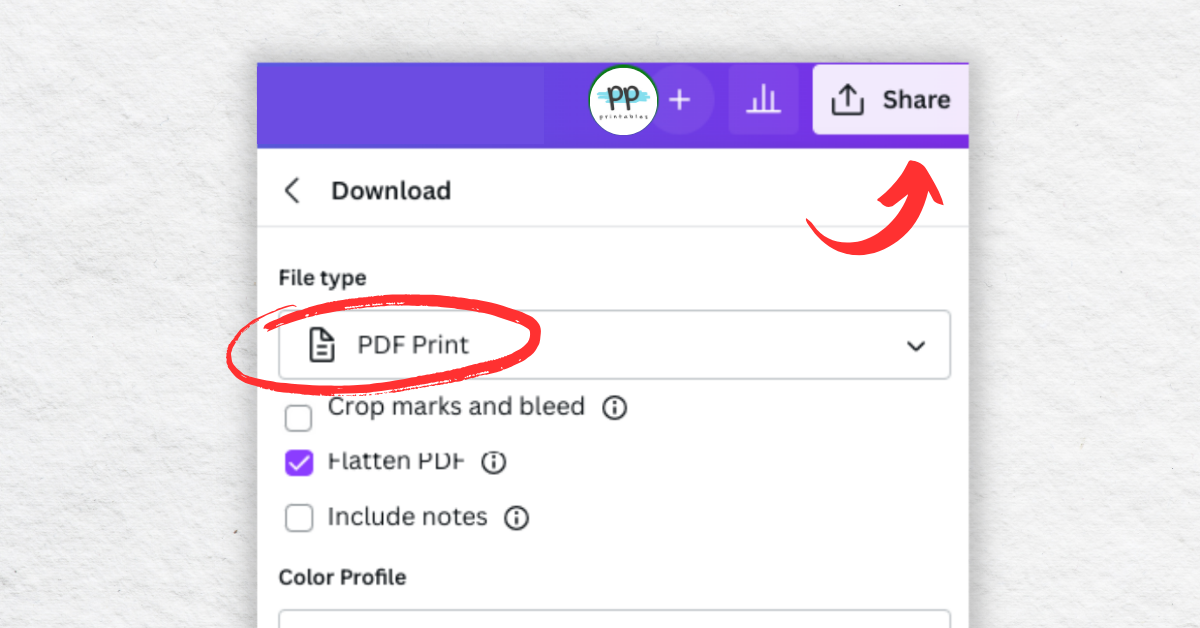
Here are the steps to export your design as a PDF Print:
1. Click the “Share” button located in the top right corner of your Canva interface.
2. Select “Download” from the options.
3. In the dropdown menu, choose ‘PDF Print’. Here, you can also decide whether to include bleed and crop marks, to flatten the PDF, or to add any notes.
4. Click “Download” to save your design.
Once downloaded, open the PDF file on your computer and, if you have a printer set up, select “File” then “Print”. Alternatively, you can save the file to send to a local printing service for a professional touch.
In conclusion, to ensure your designs truly stand out with exceptional print quality, it’s crucial to download your Canva creations as a PDF Print. Happy designing and printing!